Chapter 2: Using Your Test Day Tools
Chapter 2
Chapter 2. Using Your Test Day Tools, Using Your Test Day Tools

Chapter 2: Using Your Test Day Tools
Chapter 2
Chapter 2, Using Your Test Day Tools
In This Chapter
2.1Test Day Tools
Interface Controls
Noteboard Booklet
2.2Navigation Tools
Section Interface
Navigator Window
Section Review Tool
Timer and Question Progress
2.3Interface Tools
Highlight Function
Strikethrough Function
Question Flagging
The Periodic Table
Concept and Strategy Summary
Introduction
LEARNING OBJECTIVES
After Chapter 2, you will be able to:
- Describe the computer-based nature of the MCAT and the writing tools available on Test Day
- Apply Test Day tools to expertly navigate and review an MCAT section
- Leverage Test Day tools while approaching MCAT passages and questions
“10 blade,” “forceps,” “suction”—if you’ve ever had the opportunity to observe a surgery or just marathon your favorite medical drama, you’ve likely heard these tools called for by a surgeon or an actor playing a surgeon. Even if Hollywood’s portrayal of these events can be exaggerated, the truth remains that the tools of a surgeon are vital for a successful surgery. To this end, surgeons must not only be experts in their anatomical and procedural knowledge, but also experts on the tools at their disposal and their capabilities. In this way, the MCAT is much like surgery. Not only does the MCAT require science knowledge and critical reasoning, but also a thorough understanding of the tools provided on Test Day. In this chapter, we will explain the tools available to you on Test Day and explore best practices for their usage.
2.1 Test Day Tools
The MCAT has been administered as a computer-based test (CBT) since 2007. In the years since, many adjustments have been made to the CBT interface, with the latest changes (as of the writing of this textbook) occurring in January 2018. For many students beginning their MCAT studies, learning that the MCAT is administered via computer can come with feelings of uncertainty or even anxiety. But there is good news: like all aspects of the MCAT, once the nature of the challenge is understood it can be prepared for and ultimately leveraged in your favor. In fact, compared to a standardized pencil-and-paper test, the tools offered on the CBT MCAT will allow your Test Day experience to go far more smoothly! All that’s needed on your end is a little knowledge and some practice with the testing interface. Before jumping into the specifics, let’s discuss a few key factors to keep in mind.
Interface Controls
Inputting commands on the MCAT can be done two ways. One input method is via on-screen buttons using the mouse, and the second is via keyboard-based commands, also known as hotkeys (Table 2.1). The MCAT aims to be as versatile as possible, so while all functions on Test Day can be accomplished with the mouse and on-screen buttons, those functions have associated hotkeys as well. As a general rule, the use of hotkeys is more efficient than on-screen controls, thus, it is recommended that test takers become comfortable with the hotkey system for the MCAT prior to Test Day. If you find yourself using a function only once or twice per section, then the keyboard shortcut may not be worth incorporating into your Test Day habits.
Table 2.1 Keyboard Shortcuts
Shortcut Function Shortcut (Section Review) Function (Section Review)
Alt + N
Advance to Next; Answer No
Alt + E
End Review of Section/Exam
Alt + P
Return to Previous
Alt + W
Return to Section Review
Alt + V
Open Navigation
Alt + A
Review All Questions
Alt + H
Highlight/Remove Highlight
Alt + I
Review Incomplete
Alt + S
Strikethrough/Remove Strikethrough
Alt + R
Review Flagged
Alt + T
Open Periodic Table
Alt + Y
Answer Yes
Alt + C
Close Navigation/Close Periodic Table
Alt + O
Answer OK
Alt + F
Flag for Review
Selecting an Answer
The most important feature on Test Day is the ability to select an answer. This can be done in two ways. First, you can select an answer by clicking on the answer choice (either the letter or the answer). Alternatively, pressing the A, B, C, or D key on the keyboard selects the corresponding answer choice. Upon selecting an answer, the circle beside the answer choice will fill in. To deselect an answer choice, select the same answer choice again or select a different answer choice.
Noteboard Booklet
Despite being a computer-based test, on Test Day you will have the opportunity to use a test-center provided noteboard booklet. The noteboard booklet will be 8˝ by 14˝ in size, contain 9 white laminated pages, and come with a black fine point marker. The pages themselves are made of wet-erase material preventing any written work from being accidentally erased. If additional scratch-work space is needed, raise your hand and the proctor will exchange your booklet for a clean one. Strategically, it is best to exchange your noteboard booklet during the breaks in order to avoid losing your previously done scratch work and valuable test time.
The marker and noteboard booklet should be used just like a pen and paper booklet. Use of a similar noteboard booklet during practice, particularly a full-length simulation, will prevent any unforeseen frustrations on Test Day. As a general note, it is good practice to keep your written work relatively neat and organized in case you find yourself needing to revisit a question. In later chapters, we will go into greater detail about the types of information that are most useful to write down when attacking MCAT passages and questions.
2.2 Navigation Tools
Compared to a standard pencil-and-paper exam, where you can glance at upcoming questions or even flip pages back and forth, the computer-based MCAT may seem like an unnecessary nuisance. In reality, the navigation tools available on the MCAT provide time-saving opportunities not possible with a standard pencil-and-paper exam. Let’s discuss the tools that will allow you to expertly navigate each section of the MCAT.
Section Interface
The section interface is the main interface you will use on Test Day (Figure 2.1), displaying both a passage and one associated question. On Test Day you will use this interface both to analyze passages and to answer questions. The features of this interface allow efficient navigation between questions and passages as you work through the section.
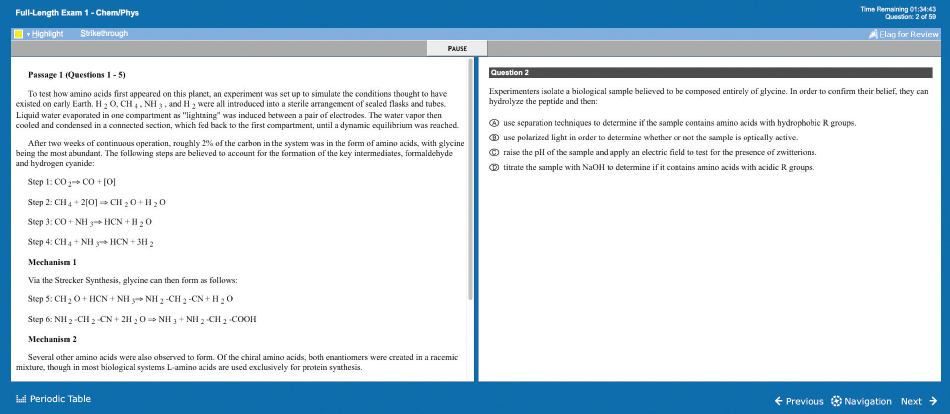
Figure 2.1 Section Interface
To navigate the section, use the three on-screen buttons at the bottom right of the screen, or their associated hotkeys:
- Next (Alt + N) brings up the next question.
- Previous (Alt + P) brings up the previous question.
- Navigation (Alt + V) brings up the Navigator window.
Navigator Window
The Navigator window lists the questions, displays question status, and displays flagged status (Figure 2.2). Understanding how to use this tool is vital for the passage strategies discussed in later chapters!
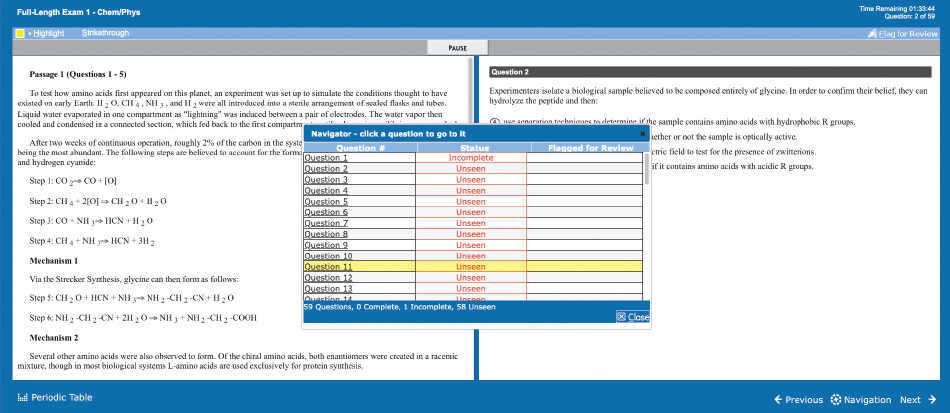
Figure 2.2 Navigator Window
The left column lists question numbers and can be used to navigate to specific questions. To do so, left-click on the question number. The center column displays question status, which updates automatically as you progress through the test:
- Completed—The question has an answer selected.
- Incomplete—The question has been seen but no answer has been selected.
- Unseen—The question has not been seen.
In the right column, the question’s flagged status is shown. As you take the exam, you can flag a question to remind you to return to it at the end of the section. We’ll expand upon this strategy later in the chapter.
The Navigator window itself can be moved by clicking and dragging the top bar and resized by clicking and dragging the borders. To close the navigation window without jumping to a different question, click Close or press Alt + C.
With the ability to jump to any question in the section, the Navigator window can allow a savvy MCAT tester to skip difficult passages (saving them for last) and quickly return to them near the end of the section. To skip a passage, note the title of a passage, such as “Passage 1 (Questions 1–5),” then use the Navigator window to bring up the first question of the next passage (e.g., Question 6). Returning to any previously seen passage, including passages skipped due to their difficulty, requires a bit of foresight. Reserve a space in your noteboard booklet for passage navigation, a place where you can jot down each passage number and the number of the first question associated with each passage (e.g., “P6: Q31”). When you wish to return to a skipped passage, simply bring up the Navigator window and click on the first question of the passage (e.g., Question 31). We will discuss these strategies further in Chapter 4: Previewing the Passage.
Section Review Tool
Transition from the general section interface (seen above) to the Section Review interface (Figure 2.3) occurs when the section is finished (more specifically, when the Next button is clicked on the last question of the section). The purpose of the Section Review interface is to allow the tester to return to any lingering questions and to ensure no questions remain unanswered. Toward this end, the Section Review provides three ways to review the section.
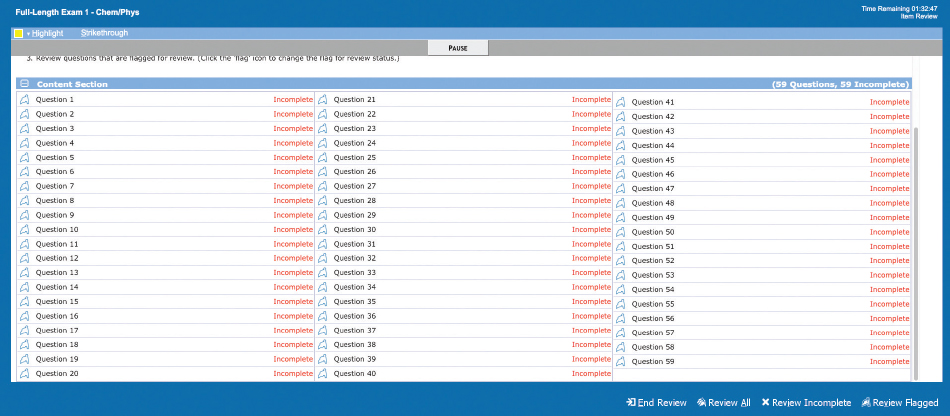
Figure 2.3 Section Review
- Review All (Alt + A)—brings up Question 1 and allows for navigation to every question with the next/previous buttons.
- Review Incomplete (Alt + I)—allows for review of incomplete questions only. The next and previous button only navigate to incomplete questions, skipping completed questions.
- Review Flagged (Alt + R)—allows for review of flagged questions only. The next/previous buttons will only navigate to flagged questions, skipping non-flagged questions.
Similar to the Navigator window, Section Review allows you to review individual questions by clicking the question number on the screen. When viewing questions through the Section Review interface, the Navigation button is replaced with the Review Section button (Alt + V), which returns to the Section Review screen.
Most testers will have limited time remaining when they enter the Section Review interface, so it’s important to use its functions strategically. We recommend using the Review Incomplete function to ensure no questions remain unanswered and then Review Flagged to return to those questions you’ve marked for further review. To end the section, click the End Review (Alt + E) button in the bottom right of the screen.
Timer and Question Progress
The time remaining and question progress are displayed at the top right of all interfaces within a section of the MCAT. Although these items can be hidden by left-clicking on them, it is highly recommended to keep both visible—they are important tools for managing your section pacing, as discussed in Chapter 4: Previewing the Passage.
2.3 Interface Tools
In addition to the tools available to navigate throughout the sections of the MCAT, the test maker has made several other tools available via the CBT interface (Figure 2.4). Just as it takes practice to become comfortable adapting from reading books and articles on paper to reading text on a screen, so too do these interface tools require a bit of practice. But with a little dedication, using these tools will become second nature by Test Day. When you master these tools, you can efficiently highlight text, strike out text, flag questions, and call up the periodic table in the science sections.
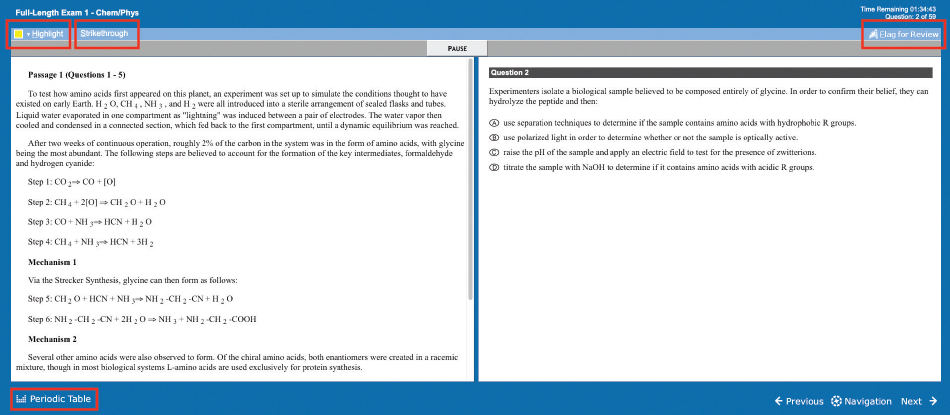
Figure 2.4 Interface Tools
Highlight Function
Much like its everyday counterpart, the highlight function highlights text in yellow. Strategically, highlighting text should stress the text’s importance. To highlight text:
- Ensure the Highlight option is selected in the top left corner, indicated by a yellow box (this is the default setting).
- Use the cursor to left-click and hold while dragging over the desired text.
- Press Alt + H or alternatively left-click the Highlight button in the top left of the screen.
MCAT highlighting also allows a feature that ordinary highlighting does not: erasing. Unfortunately, this process is somewhat cumbersome. To remove highlighting from text:
- Select the Remove Highlight option by left-clicking the box beside the word “Highlight” in the top left corner. Alternatively, pressing Alt + H (with no text selected), then pressing the down arrow key twice, and then the space bar will also select the remove highlight option.
- Left-click and hold while dragging over the highlighted text using the cursor.
- Press Alt + H or left-click the Highlight button, ensuring that the remove highlight option is selected.
When highlighting, we highly recommend using the hotkey, Alt + H, rather than clicking the highlight button. In addition, due to the cumbersome nature of switching between the highlighting and remove highlighting modes, use the highlight tool carefully to avoid ever needing to use the remove highlight function. And if you do highlight something you didn’t intend to, consider just leaving it on screen unless you’re sure it would distract you.
Highlighting in Passages
If you choose to highlight within the passage, we recommend that you do so sparingly to avoid creating more work for yourself when referring back to the passage later. In general, “less is more” when it comes to highlighting. In the sciences, it can be useful to highlight key terms or given values within passages. We will discuss highlighting within CARS in greater detail in later chapters.
Highlighting in Questions
Highlighting in question stems should be used as needed. To clarify, many students will find highlighting question stems unnecessary, while others may find highlighting helps them avoid careless mistakes. For example, if you find yourself often overlooking phrases such as “is not to be expected” in question stems, spending a moment highlighting the phrase can help ensure it stays in your mind while you are answering the question. Highlighting in the answer choices, although possible, is not recommended.
Strikethrough Function
The strikethrough function crosses out selected text, as seen here. Typically, this is used to indicate that the crossed out text is not important. To strikethrough text:
- Left-click and hold while dragging over the desired text using the cursor.
- Press Alt + S or alternatively left-click the Strikethrough button in the top left of the screen.
To remove Strikethrough from text, click and drag to select only the strikethrough text, then press Alt + S. If non-strikethrough text is accidentally selected along with the strikethrough text, then the Alt + S function will strikethrough all selected text.
Strikethrough in Passages
Generally speaking, a limited use of the Strikethrough tool during passage reading is best. Although it is no secret that each passage on the MCAT has its own amount of “fluff” (irrelevant) text, the Strikethrough tool should be used sparingly, since it’s often more efficient to simply read past the fluff than to stop and strikethrough the text. It can be difficult to determine when text is actually irrelevant in CARS passages, so we recommend using the Strikethrough tool more on passages in the science sections (where it is easier to determine when material won’t be targeted by questions) than in CARS.
Strikethrough in Questions
Like highlighting, the Strikethrough tool should be used as needed in questions. Most testers find little value using the Strikethrough tool in the question stem, but find it useful to eliminate answer choices. The key here is to keep use of the tool purpose driven; do not strikethrough answer choices simply because they are wrong, as these extra seconds add up over a section! Rather, aim to use the Strike-through tool in a way that reduces your chance of error. For instance, let’s say you begin working on a question, then ultimately choose to triage it. Before moving on to the next question, first use Strikethrough on any choices you managed to eliminate. When you return to the triaged question later, those eliminated choices will remain crossed out, even if you don’t remember why!
Question Flagging
The Flag (Alt + F) function allows testers to flag a specific question, usually to remind them to return to it at the end of the section. Flagged questions can be seen at a glance in the Navigator window and the Section Review screen. To flag a specific question, click the flag icon in the top right corner or use the hotkey Alt + F. Once flagged, the flag icon will turn yellow. In order to make the most of this function, it’s important to use it sparingly. Remember, the MCAT is a timed test: if there is extra time at the end of a section, it is best spent reviewing questions you could feasibly answer. In other words, do not flag every difficult question or every question that you guess on; rather, flag only those questions that you know you could answer correctly if you just devoted some extra time to them.
It is worth pointing out that the Flag function loses much of its usefulness in the CARS section. CARS questions are completely passage based and therefore best answered shortly after analyzing the passage. Thus, you should aim to answer every question in a CARS passage before moving on to the next one, and save the Flag function for the science sections.
The Periodic Table
The periodic table of elements is made available in both the Chem/Phys and Bio/Biochem sections of the MCAT and provides for each element its symbol, atomic number, and atomic weight. To bring up the periodic table, left-click the Periodic Table (Alt + T) button in the bottom left. This will bring up a centered window displaying the periodic table (Figure 2.5). Similar to the Navigator window discussed previously, the Periodic Table window can be manipulated by clicking and dragging the top bar and window borders. To close the periodic table left-click Close (Alt + C).
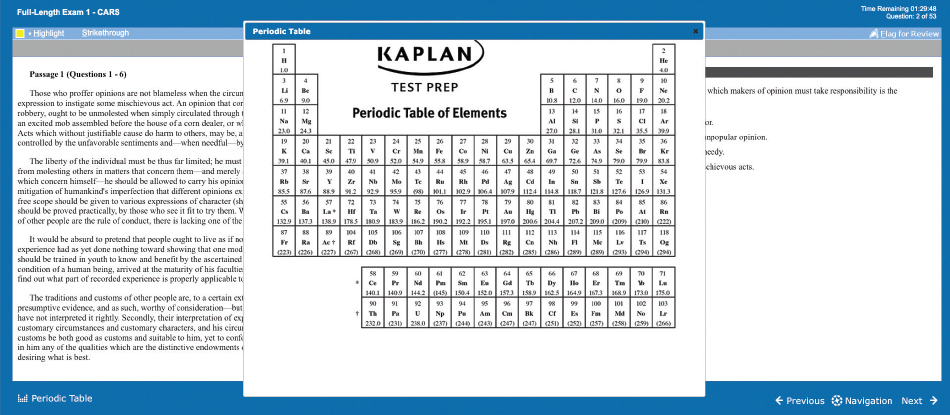
Figure 2.5 Periodic Table
Strategically, the periodic table should be used only when needed. Keep in mind that the periodic table always displays the same information and that bringing it up obscures the view of the question and passage. Thus, you should use the periodic table only when seeking a specific piece of information, e.g., an element’s group or an element’s atomic weight. In other words, do not bring up the periodic table simply to check if there is anything useful for a particular question. Instead, when opening up the periodic table, you should know exactly what you are looking for.
Conclusion
Well done! You’ve taken your first step toward mastering the computerized tools, that allow for smooth navigation of the interface on Test Day. Now you’re ready to practice with them! If you’re learning how to swim, it’s not enough to read a book about different swim strokes; you’re better off finding a shallow body of water where you can practice those strokes safely. So too with these CBT tools: to truly master them, practice using them whenever you use a test-like MCAT interface.
During your practice, you will likely find some tools are more useful to you than others, and you might even find yourself disregarding some of the recommendations in this chapter. This is perfectly acceptable: the tools are yours to make use of (or not) based on your preferences. The key is to ask yourself, before your test-taking habits become too entrenched, “Is my usage of the tools helping or hurting?” As long as it helps you, you’re using the tools in the right way for you.
Concept and Strategy Summary
Test Day Tools
- The MCAT is a computer-based test (CBT) with unique tools to master.
- Interacting with the CBT MCAT can be done via on-screen buttons or keyboard shortcuts, listed in Table 2.2.
Table 2.2 Keyboard Shortcuts
Shortcut Function Shortcut (Section Review) Function (Section Review)
Alt + N
Advance to Next; Answer No
Alt + E
End Review of Section/Exam
Alt + P
Return to Previous
Alt + W
Return to Section Review
Alt + V
Open Navigation
Alt + A
Review All Questions
Alt + H
Highlight/Remove Highlight
Alt + I
Review Incomplete
Alt + S
Strikethrough/Remove Strike-through
Alt + R
Review Flagged
Alt + T
Open Periodic Table
Alt + Y
Answer Yes
Alt + C
Close Navigation/Close Periodic Table
Alt + O
Answer OK
Alt + F
Flag for Review
- On Test Day, you will be provided with a 9-page noteboard booklet and fine-point marker to use for scratchwork. If you need additional space, you may exchange your booklet for a clean one with the test administrator.
Navigation Tools
- Section Interface displays the passage and associated questions one at a time. Use the buttons listed below to navigate the section.
- Next brings up next question.
- Previous brings up previous question.
- Navigation brings up the Navigator window, which displays the status of all questions at a glance and allows the tester to jump to any specific question.
- Use the Navigator window like an expert.
- Jot down in your noteboard booklet the passage number and first question number for each passage (e.g., “P6: Q31”).
- When you wish to return to a skipped passage, simply bring up the Navigator window and click on the first question of the passage (e.g., Question 31).
- The Section Review interface shares most of the functions of the Navigator interface, but allows for targeted review of questions, including:
- Review Incomplete allows for review of incomplete questions only.
- Review Flagged allows for review of flagged questions only.
- Use the Review Incomplete function first, then the Review Flagged before ending your section (Alt + E).
- Timer and Question Progression functions are located at the top right of the screen and should be kept visible to assist in your pacing strategy.
Interface Tools
- Highlight keywords or phrases, as needed.
- Use the cursor to select text and the keyboard shortcut, Alt + H, to highlight text.
- Reserve highlighting for important terms or phrases, while avoiding the need to remove highlighting.
- Highlight key phrases in question stems that have been missed on previous questions.
- The less text that is highlighted, the more effective it is.
- Strikethrough irrelevant text, as needed.
- Use the cursor to select text and then the keyboard shortcut, Alt + S, to strikethrough text.
- Strikethrough should be used for wrong answer choices, in particular when a question may be returned to later.
- Strikethrough with purpose! Do not simply strikethrough wrong answers because they are wrong; this will use too much time.
- Flag questions that you want to return to at the end of the section.
- Be conservative in your question flagging because there will be limited time at the end of the section.
- You can navigate through only flagged items from the Section Review interface.
- The periodic table is available in the Chem/Phys and Bio/Biochem sections.
- The periodic table contains an element symbol, atomic number, and atomic weight for each element.
- When using the periodic table, you should know what you are looking for. Do not use the periodic table for inspiration.